Fix a WordPress website with AI: method, prompts and risks
ChatGPT can help explain a WordPress error, develop a hypothesis or write a support request. Changing a website without a backup, recovery access and a method can make things worse.
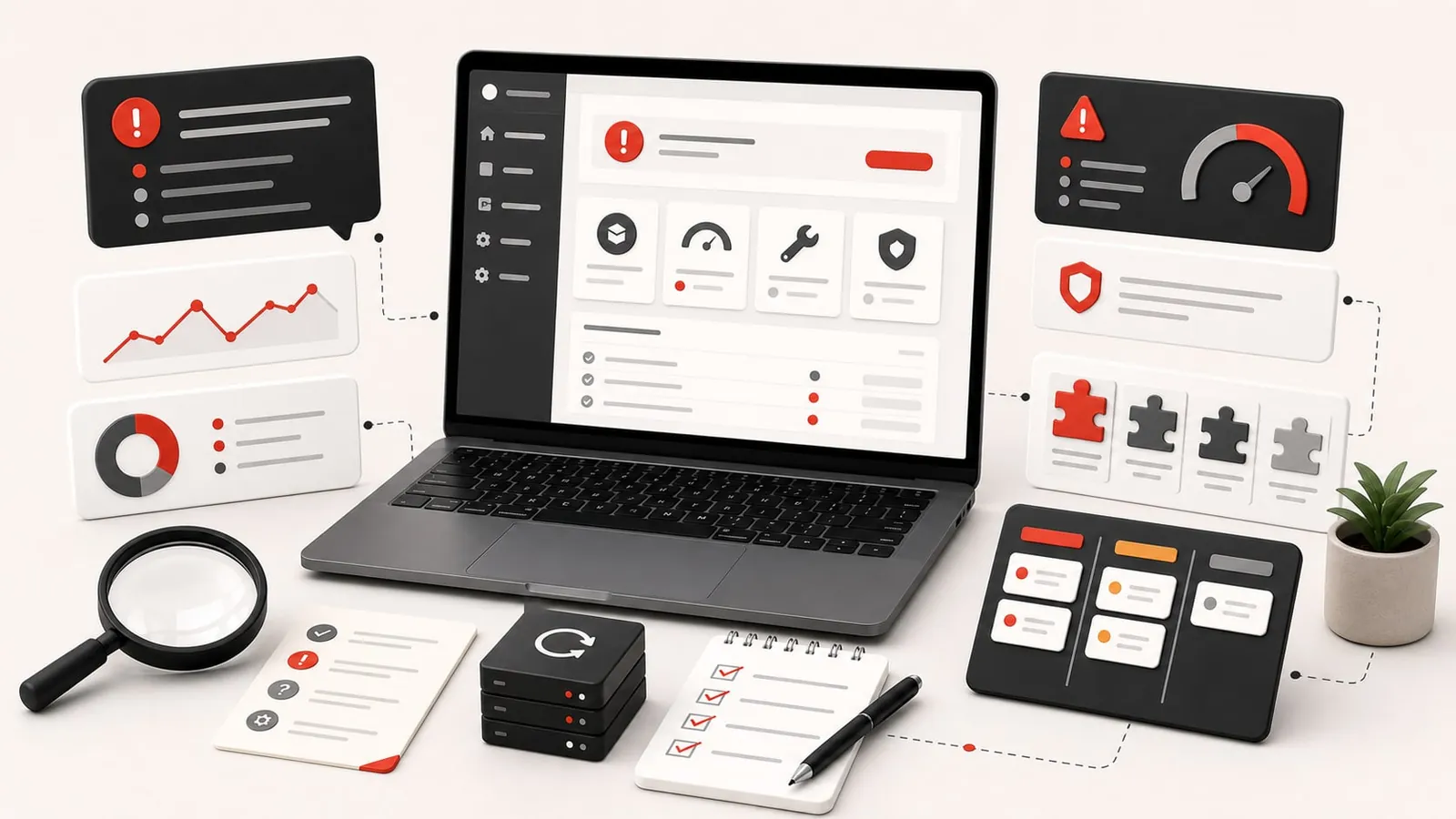
When a WordPress site displays an error, becomes slow, breaks after an update or no longer receives messages from the form, the temptation is strong to copy the symptom into ChatGPT and follow the answer. It's understandable: AI quickly explains, suggests possible causes and gives the impression of taking over.
WordPress is a connected system: theme, plugins, hosting, PHP, cache, database, email, DNS, backups and security can affect one another. AI can help explain the problem, but its advice can be dangerous if it leads to changes on the live website without a safety net.
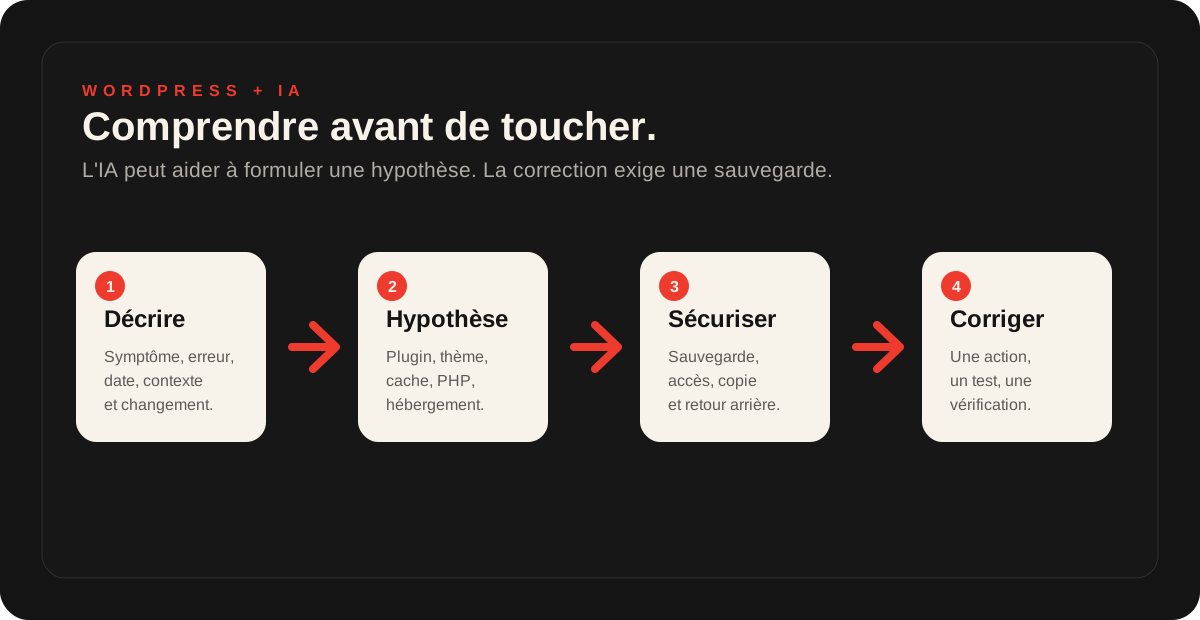
The useful method is to let AI describe the problem, prepare assumptions and organize audits. The correction comes then, with backup, emergency access and controlled test.
Central idea
AI can help you understand. It should not lead you to make changes without a backup.
Before you disable a plugin, edit a file, touch DNS or copy code, you need to know how to go back. Otherwise, a small correction can become a complete failure.
What AI can do usefully
AI is very useful at the beginning of the problem, when you have to put words on what's going on. It can translate an error message, classify probable causes, help you prepare the information to give a service provider or explain the risks of an action.
01
Understanding
Translate an error, symptom or technical message.
02
Sort
Plugin, theme, cache, PHP, hosting, email or DNS.
03
Prepare
List useful information before asking for help.
04
Avoid
Identify risky actions before clicking.
05
Prioritize
Know what to test, check or delegate.
What to prepare before asking AI
The more precise your description, the more useful the analysis will be. The right reflex is to give symptoms and context, not sensitive access.
The exact symptom: blank page, critical error, slowness, form, redirection, inaccessible admin.
The time when the problem started and the recent changes.
The visible error message, copied without password or private data.
The plugins or themes recently updated.
The WordPress version, PHP or hosting if you know it.
The status of backups: date, location, possibility of restoration.
Anonymized screenshots if they help to understand.
The immediate objective: to understand, restore, repair, secure or request a diagnostic review.
Prompt 1: Understand a WordPress Error Message
Start by asking for an explanation and assumptions, not an immediate correction.
Prompt to copy
Explain this WordPress error message in plain language. Do not give me code to copy yet. List likely causes, information to check, actions to avoid in production and what to back up before making fixes. Here is the message and context: [paste message and context].
Prompt 2: Analyzing a Critical Error or a blank page
A critical error may come from a plugin, theme, PHP, server memory or update. We need to avoid random testing.
Prompt to copy
My WordPress website displays a critical error or blank page. Help me prepare a diagnostic review without making things worse. Classify possible causes: plugin, theme, PHP version, memory, cache, hosting and updates. For each, identify cautious checks, dangerous actions and information to give a provider.
Prompt 3: Understand an update that broke the site
After an update, do not disable everything without a method. The test order counts.
Prompt to copy
A WordPress, theme or plugin update seems to have broken my website. Help me organise the checks. Explain what to back up, which recent changes to note, which plugins are critical, what to test on a copy where possible and which actions to avoid on the live website.
Prompt 4: Diagnose a form that no longer receives messages
When a form seems to work but emails do not arrive, the problem may come from the plugin, SMTP, domain, antispam or mailbox.
Prompt to copy
My WordPress form no longer seems to send messages correctly. Help me distinguish possible causes: form plugin, SMTP, DNS, SPF/DKIM/DMARC, antispam, inbox, cache or conflict. Give me a checklist without asking me to delete or disable items at random.
Prompt 5: Understanding why the site is slow
A slow WordPress can come from images, theme, plugins, cache, database or hosting. AI can help prepare leads, but not measure for you.
Prompt to copy
My WordPress website is slow. Help me prepare a diagnostic review before making changes. Classify likely causes: hosting, theme, plugins, images, cache, database and external scripts. For each, identify data to measure, visible signs and fixes to avoid without a backup.
Prompt 6: turning the problem into a diagnostic brief
This is often the best use of AI: turning a unclear problem into a clear demand, exploitable by someone who can check the site.
Prompt to copy
Help me write a short brief requesting a WordPress diagnostic review. Here are the symptom, URL, recent changes, visible messages, access available and backup status. Organise them into urgency, risks, hypotheses, missing information, actions already attempted and questions for the provider.
What you can do alone, check or delegate
Sorting is the key point. Some actions are reasonable, others require verification, and others must be avoided if you do not have backup or emergency access.
Do it yourself
Describe the symptom, record recent changes, copy an error message, check if a backup exists, prepare a brief.
To be checked
Test a form, read available logs, identify a recent plugin, compare before/after an update.
Delegate
Changing the code, touching the database, changing DNS, restoring a backup, cleaning up a hack or correcting an inaccessible site.
Actions to avoid with a WordPress site in production
Even if AI seems to be sure of it, some actions can worsen the breakdown. Before doing these manipulations, check the backups and the possibility of going back.
- copy code in
functions.phpwithout emergency access; - disable all plugins on an active site without method;
- delete a plugin, theme or suspicious file without copying;
- modify DNS, emails or server settings on a simple assumption;
- restore a backup without knowing what will be lost;
- modify the database from a request generated by AI;
- touch the redirects or URL without checking the SEO impact;
- share access details, passwords, API keys or customer data in a conversation.
When to request a human diagnostic review
Ask for a diagnostic review if the site is inaccessible, if the administration no longer responds, if the site redirects to a suspicious address, if Google displays a warning, if the forms no longer deliver the messages or if you do not know where the backups are.
It is also useful if AI gives you several possible causes without clear priority. In this case, the job to do is to check the real environment: hosting, backups, plugin, theme, logs, emails, security and history of changes.
For a problem blocking or worrying, the page WordPress emergency support is more suitable. For a less urgent situation, start with a diagnostic review or a site audit.
To go further with the AI on your site
To use AI more broadly, read using AI to improve your website. For a structured reading of the site, see Have your site audited by ChatGPT.
If your subject is the content, you can also read the prompts to improve a home page or the article on SEO with AI.
Frequently asked questions
Can we fix a WordPress site with AI?+
AI can help understand an error message, formulate assumptions, prepare a checklist and write a request for assistance. It must not be used to directly modify the theme, plugins, database, DNS or server without backup and without method.
What WordPress problems can we analyze with ChatGPT?+
You can describe a blank page, critical error, broken form, slow website, failed update or plugin problem. Supply the exact symptom, recent changes and available information without sharing sensitive access.
What should you never give to an AI to fix WordPress?+
Do not share passwords, admin access, FTP or database credentials, API keys, full configuration files or customer data. Anonymised screenshots, error messages and descriptions are enough for an initial assessment.
Can I copy code generated by AI into functions.php?+
It's risky. An error in functions.php may block the site or administration. Do not copy code in production without backup, emergency access, test environment and understanding what the code is changing.
Should plugins be disabled if ChatGPT advises it?+
Not at random on a production site. Disable a plugin can break a form, payment, layout or security. First, you need to save, identify critical plugins and test them methodically.
When to ask for a WordPress diagnostic review rather than follow AI?+
Ask for a diagnostic review if the site is inaccessible, if the administration no longer responds, if the site is hacked, if the form no longer receives the messages, if the backups are unclear, or if a recommendation touches the database, DNS, server, theme or plugins.
Key takeaway
AI can be very useful to understand a WordPress problem, prepare a diagnostic review and avoid leaving in all directions. It helps to formulate better questions.
It should not replace the method: backup, recovery access, checks, tests and rollback. A quick WordPress fix without a safety net can cost more than the original problem.
Read next.

Have ChatGPT audit your website: method, prompts and limitations
ChatGPT can provide an initial assessment of a website if you supply the right information, ask useful questions and review its recommendations before applying them.
Read the article
Use AI to improve your website: method, prompts and limitations
AI can help analyse a page, clarify a message, explore SEO improvements or improve a homepage. It does not replace a thorough technical, SEO and commercial assessment.
Read the article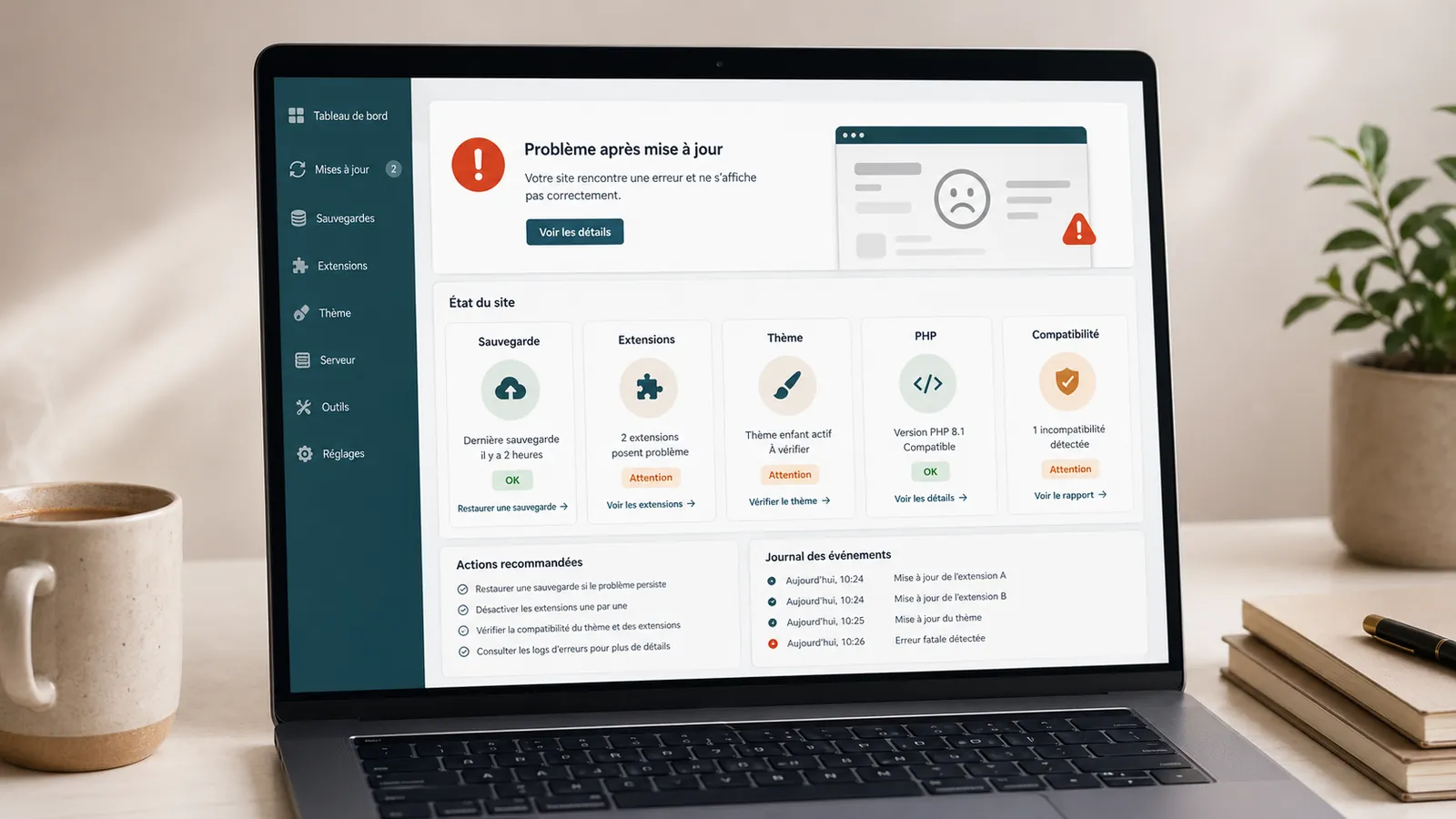
WordPress update broke your website: what should you do?
A WordPress update broke your website? What to check, what to avoid and when to request a diagnostic review before making fixes.
Read the article