WordPress critical error: what to do when the site displays an error message?
Does your website display 'There has been a critical error on this website'? Here is what to check, what to avoid and when to request a diagnostic review before making fixes.
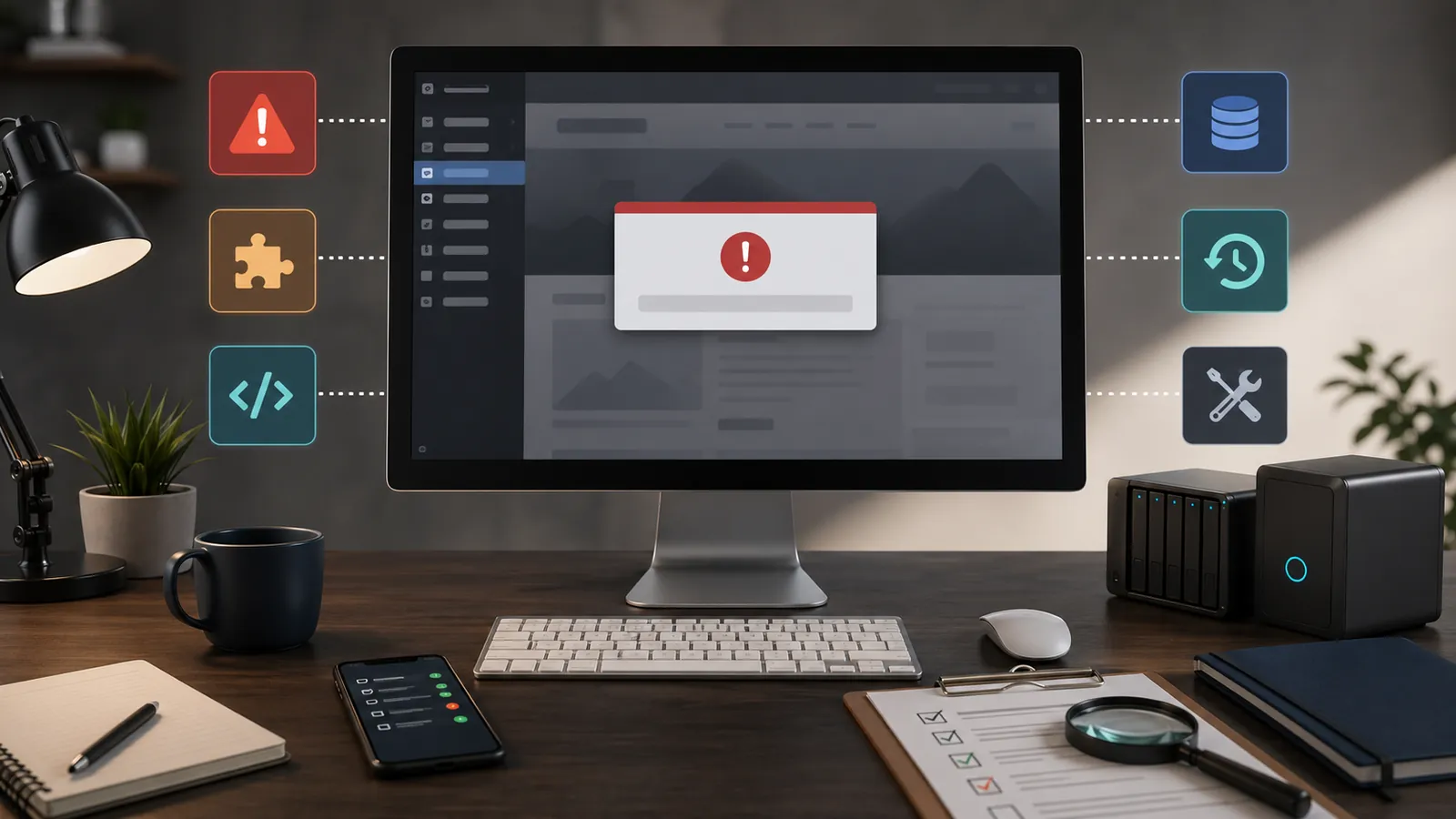
'There has been a critical error on this website' often appears without warning. The page stops loading, WordPress admin may become inaccessible and the website suddenly seems blocked.
This message is worrying, but does not yet identify what is broken. It mainly indicates that WordPress has encountered an error it cannot handle normally.
You have to identify what triggered the error before you touch the wrong thing.
First steps
- Record the exact message and the page affected.
- Do not delete a plugin or theme without backup.
- See if WordPress or hosting provider has sent an error email.
- Check what has changed recently: update, PHP, plugin, theme or server.
- Identify a recent backup before any heavy correction.
A critical WordPress error is a symptom, not a diagnostic review
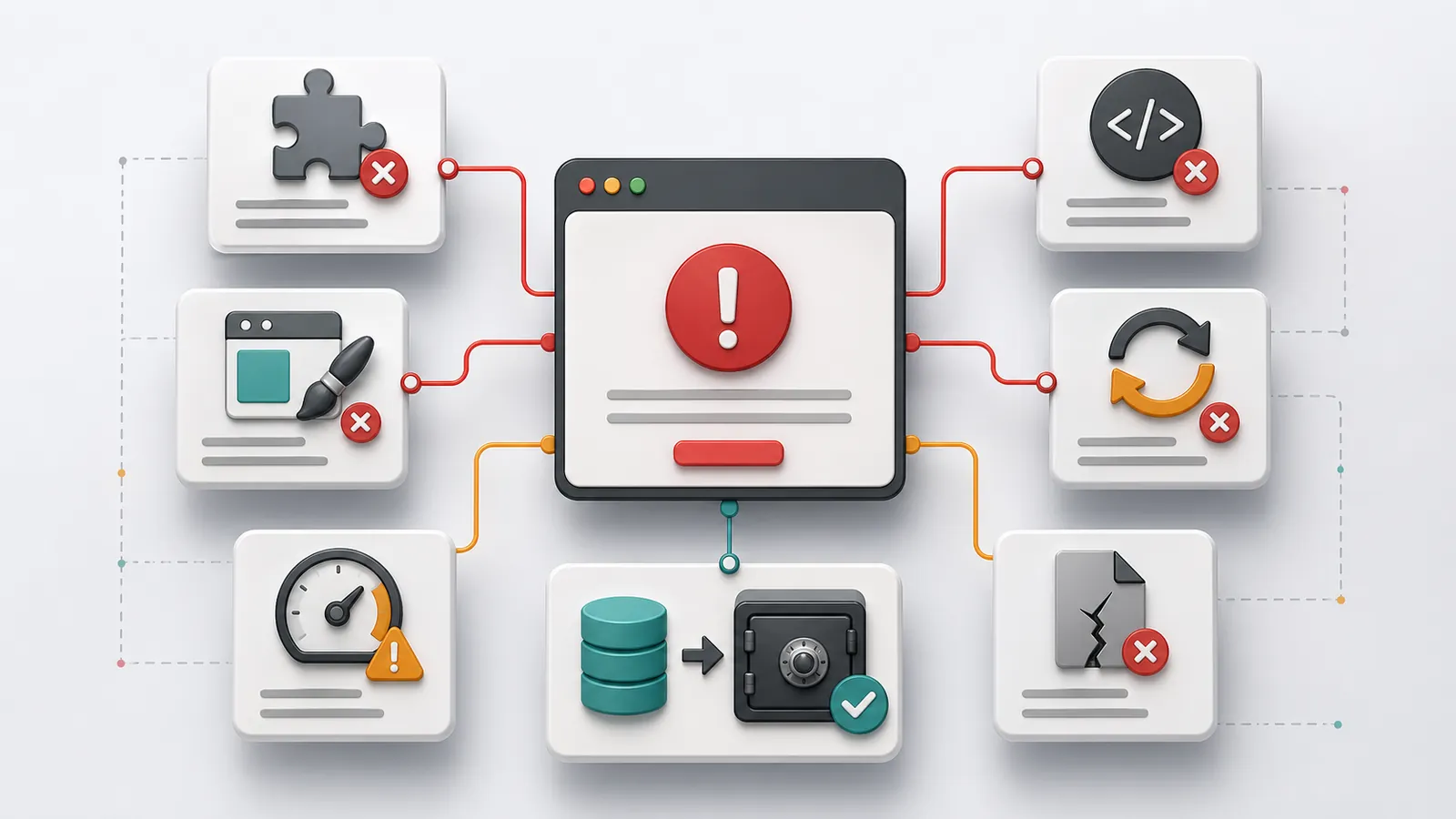
The critical error message alone does not identify the cause. It can appear after an update, plugin installation, theme change, migration, PHP change or hosting work.
In some cases, the public website is blocked but the administration remains accessible. In others, everything is inaccessible. Sometimes only a specific page triggers the error.
The visible message is only the starting point: you must identify the layer of the site that causes the blockage.
This is why a critical error often joins the other WordPress incidents: unreachable website, update that breaks the site, blank page, plugin conflict or hosting problem.
Frequent cause 1: a plugin causes conflict
WordPress plugins are a frequent cause of critical error. One plugin may be old, poorly maintained, incompatible with another, or no longer work properly after an update of WordPress or PHP.
The trap consists of deactivating or deleting several plugins without knowing which one is concerned. This can make the site even more difficult to resume, especially if a plugin manages a form, security, cache, shop or page builder.
If the error appeared just after installing or updating a plugin, this track is a priority. But it has to be checked cleanly.
Frequent cause 2: the theme or page builder blocks the site
A theme can also cause a critical error. The same applies to a page builder or module integrated with the theme. The site may depend on an old code, an deleted function or fragile compatibility.
Changing the theme immediately may seem tempting, but it's rarely neutral. Design, page templates, menus, blocks and certain features may depend on the current theme.
Before turning to another theme, one must understand whether the theme really is the cause or whether it only reveals a conflict elsewhere.
Frequent cause 3: a incompatible PHP version
PHP is the technical basis on which WordPress works. If the PHP version is too old or too recent for some components of the site, a critical error may appear.
This often happens after a change in hosting provider side, migration, server update or an attempt to upgrade the site without checking plugins and theme.
The choice of PHP should be based on what the site actually supports.
Frequent cause 4: An update revealed a fragile base
A critical error may appear after an update of WordPress, plugin, theme or PHP. This does not always mean that the update was bad.
It can reveal a site that has not been followed for too long, an abandoned plugin, an old theme, a conflict already present or a hosting configuration that has become limit.
The article on the update WordPress that breaks the site details this case. The key point remains the same: do not restart all updates to repair a first error.
Frequent cause 5: memory, file or server configuration
A critical error can also come from a memory limit, a corrupted file, a change in a sensitive file, a server cache, a security rule or a hosting configuration.
If the error log says 'Allowed memory size exhausted', see our guide to diagnose this memory error on MyPlugins.fr.
In these cases, the site can display the same message as a plugin conflict while the cause is not in the same place. That's what makes diagnostic review important.
An offer of maintenance and hosting is used precisely to reduce this blur: knowing where to look, what backups exist, what layer is involved and what action to take first.
What you shouldn't do right now
Do not delete plugins at random. Do not change the theme without checking. Do not change the site files if you do not know exactly what you are doing. Do not restore a backup without knowing what it contains.
Do not run all the remaining updates to try to terminate the work either. If a first modification blocked the site, adding other changes may mask the cause.
It is important to understand why the current site is no longer responding.
Simple checks to do
Record the exact message displayed. Check if the problem affects the entire site or only one page. See if the WordPress administration remains accessible. Identify what has changed recently: update, plugin, theme, PHP, hosting, migration or intervention.
Also check the emails sent by WordPress or by the hosting provider. Some messages contain a useful indication on the bug or file concerned. Finally, check the existence of a recent and restorable backup.
A WordPress backup not found quickly transforms a simple error into a heavier one. A useful backup must be identifiable, complete and testable.
When to ask for a diagnostic review
Ask for a diagnostic review if the site is blocked, if the WordPress administration no longer responds, if the error appeared after an update, if you do not know what backups exist or if several people have already intervened without solving the problem.
The no-obligation diagnostic review serves to locate the cause before correcting: plugin, theme, PHP, hosting, backup, file or conflict. Only then, it becomes possible to decide whether to disable a component, restore, correct, audit or return the site under maintenance.
If the critical error reveals an old, slow, unstable or difficult site, a site audit may be more relevant than an isolated repair.
How to prevent the error from returning
Block updates should be avoided after months without follow-up. The plugins, theme, WordPress and PHP must be maintained with a minimum order: backup before intervention, post-intervention verification, and follow-up of sensitive components.
You also need clear access details, reliable backups, understandable hosting and a list of genuinely useful plugins. An WordPress site not maintained Often ends up accumulating these frailties without visible signs.
Maintenance cannot promise that no errors will occur. It mainly helps reduce uncertainty, investigate faster and avoid improvised fixes.
Key takeaway
A WordPress critical error indicates a serious blocking, but not yet its cause. Before correcting, it is necessary to know whether the problem comes from a plugin, theme, PHP, update, hosting or backup.
Frequently asked questions
Why does WordPress display a critical error?+
A WordPress critical error may come from a plugin, a theme, an update, an incompatible PHP version, a lack of memory, a corrupted file or a conflict between components.
What to do when WordPress indicates that a critical error has occurred?+
It is necessary to avoid deleting plugins at random. Record the message, check the latest changes, backups, access to administration and ask for a diagnostic review if the cause is unclear.
Can a critical WordPress error come from an update?+
Yes. An update of WordPress, plugin, theme or PHP may reveal an incompatibility related to the status of the site before the intervention.
Should we restore a backup after a WordPress critical error?+
Not necessarily. A backup can help, but it must be recent, complete, clean and from before the problem. Restoring too quickly can overwrite useful data or reintroduce the same error.
How to find the plugin responsible for a WordPress critical error?+
You have to look at what has changed recently, check the error emails sent by WordPress, check the logs if available and test in a prudent order rather than disable several random plugins.
Conclusion: Do not correct the wrong problem
A critical WordPress error requires a calm reaction. The site may be blocked, but any unnecessary manipulation can make the recovery more difficult.
If your site displays this message and the cause is not obvious, start with a no-obligation diagnostic review. You will know whether to fix a plugin, adjust PHP, restore a backup, review hosting or audit a more fragile database.
Read next.
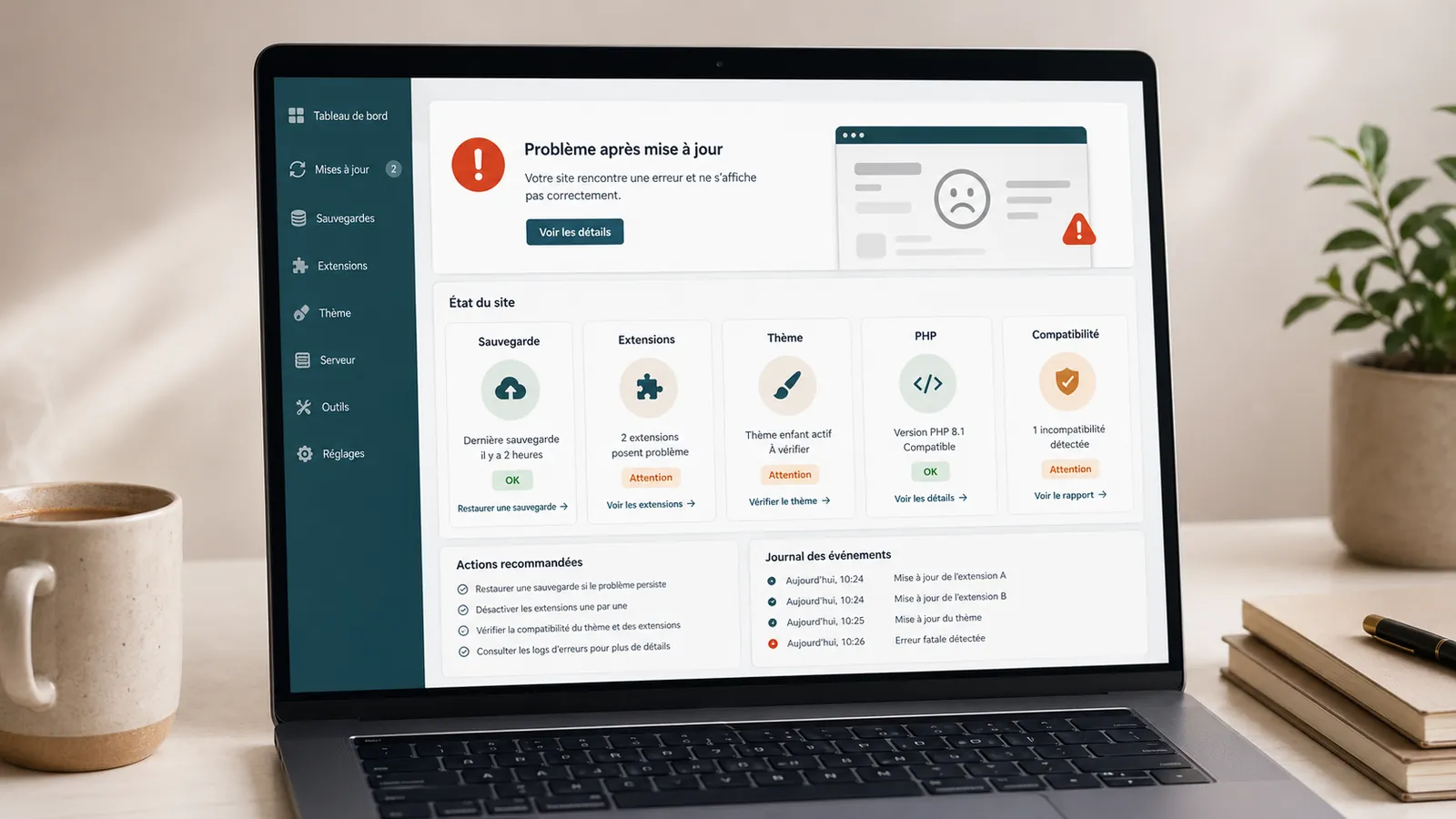
WordPress update broke your website: what should you do?
A WordPress update broke your website? What to check, what to avoid and when to request a diagnostic review before making fixes.
Read the article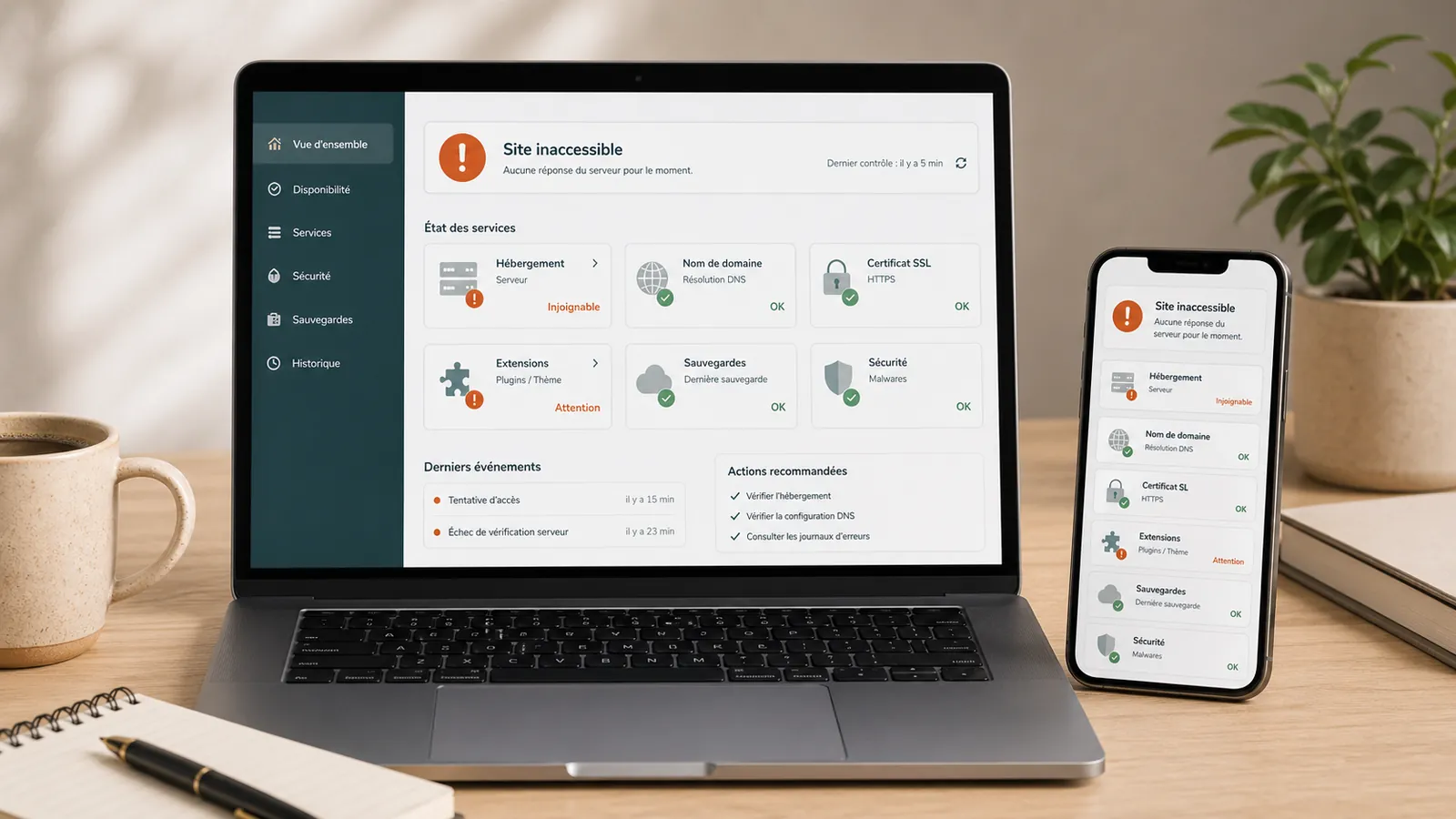
WordPress website unreachable: what to do before you call someone?
WordPress website unreachable? What to check before acting: hosting, domain, SSL, updates, plugins, backups and signs of hacking.
Read the article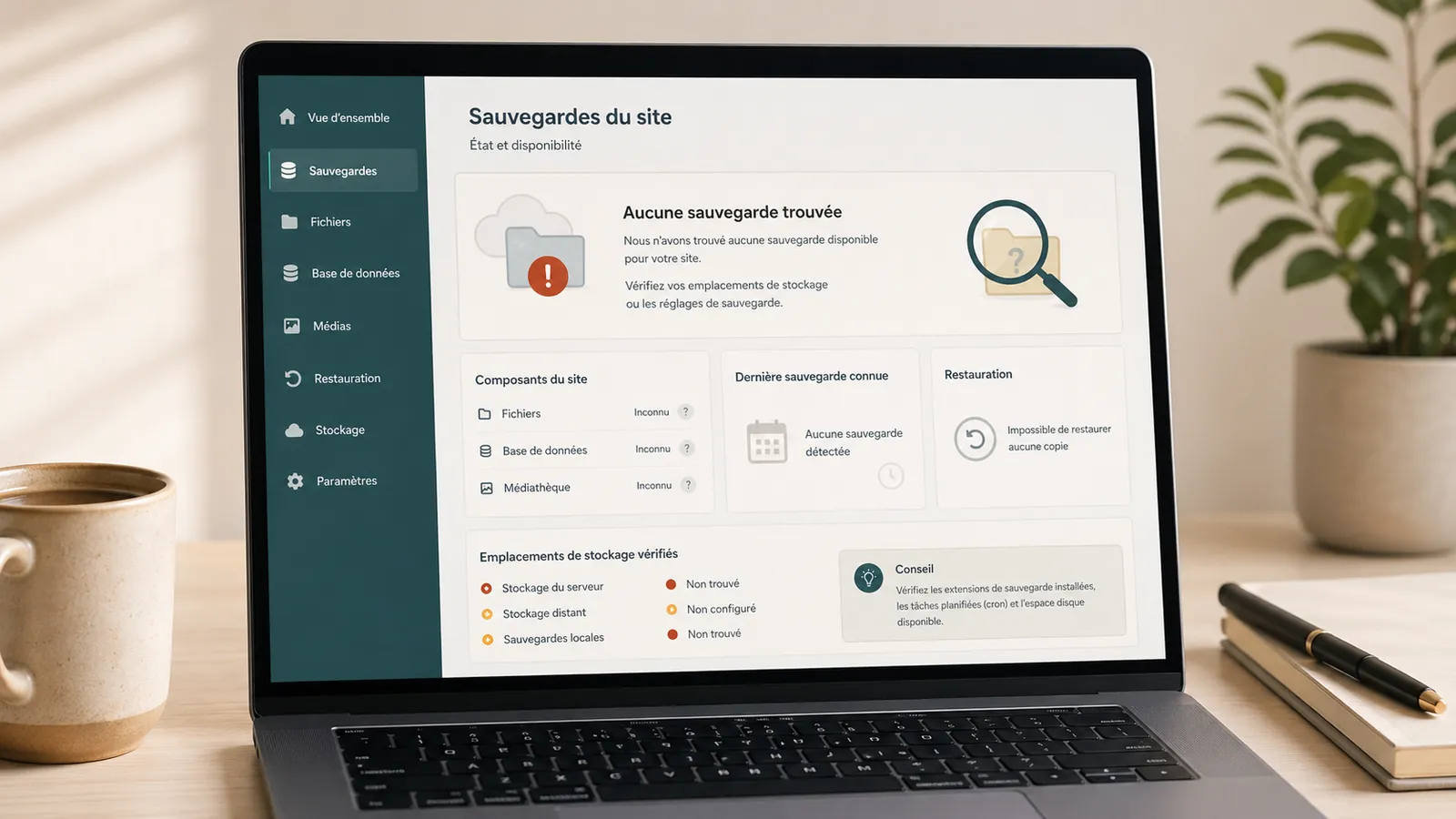
Missing WordPress backup: why you should act quickly
A missing WordPress backup can turn a simple bug into a serious incident. Here is what to check and how to avoid losing control of the website.
Read the article