WordPress update broke your website: what should you do?
A WordPress update broke your website? What to check, what to avoid and when to request a diagnostic review before making fixes.
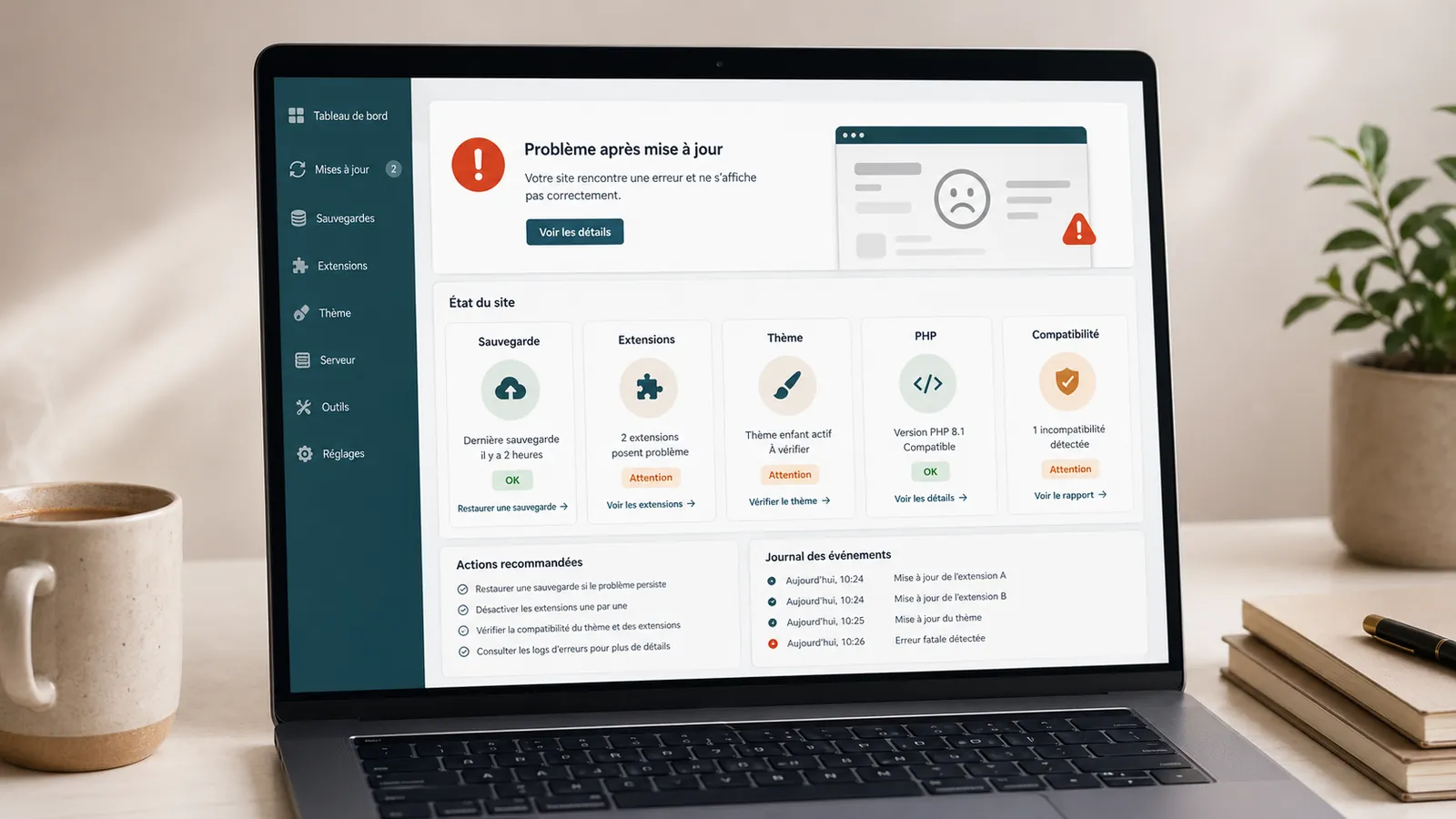
A WordPress update that breaks a site often arrives at the wrong time. The home page displays badly, a page becomes white, the form no longer responds, the menu disappears, or access to the administration becomes impossible.
The first error is to click everywhere to catch up with the problem. Relaunch all updates, disable random plugins, install a miracle plugin or delete a theme can make the situation worse.
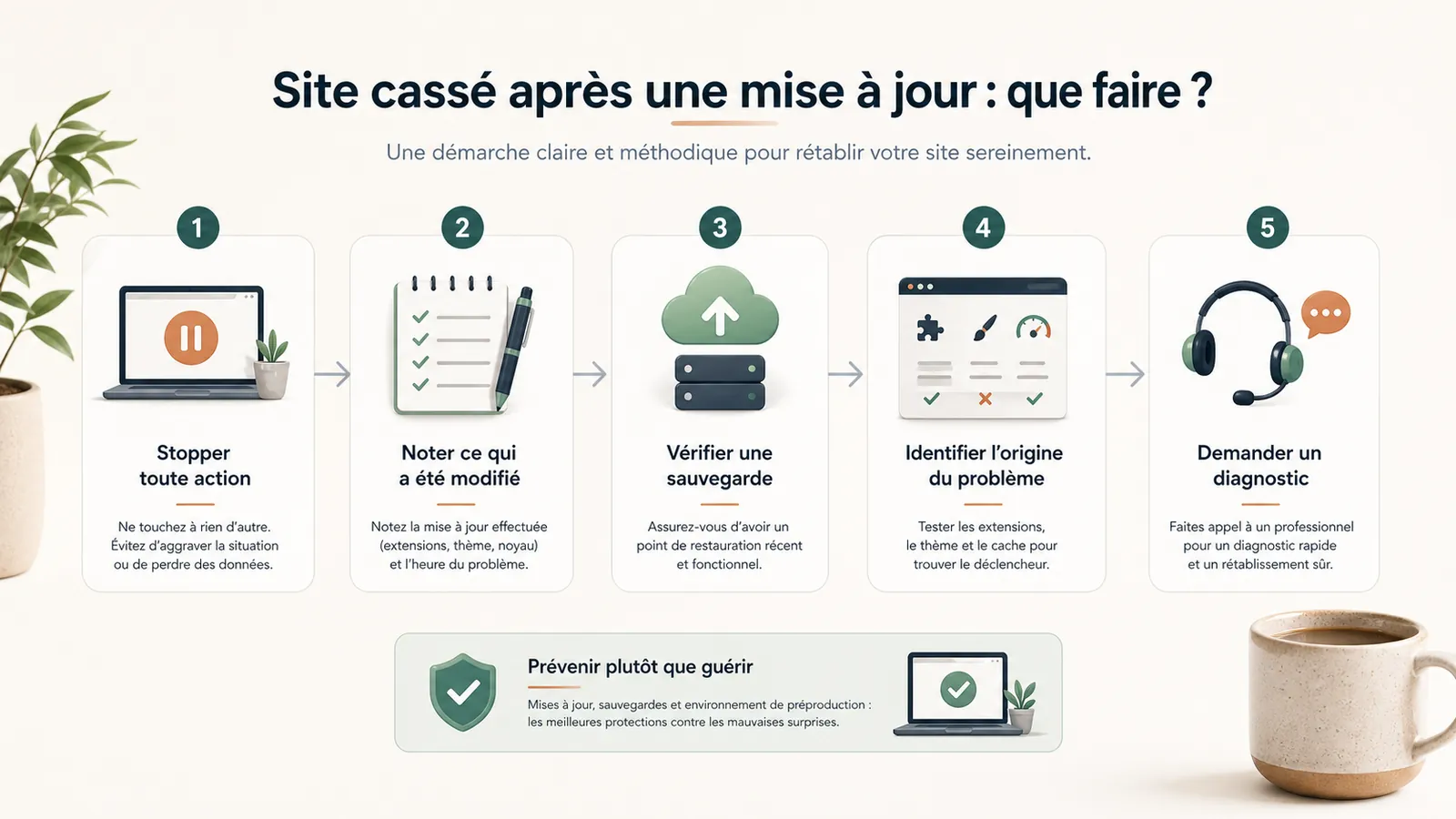
The right reflex is simpler: stop the manipulations, note what has been done, verify the existence of a reliable backup, then understand if the problem comes from WordPress, a theme, a plugin, cache, hosting or an already fragile base.
First: do not multiply actions at random
In this type of situation, start by preserving the elements useful for diagnostic review and avoiding the manipulations that would complicate recovery.
Do not run every update again in one batch. Do not disable ten plugins without knowing what they do. Do not delete files, themes or plugins. Do not restore an older version without knowing exactly what it will replace.
Instead, note the facts: what update was launched, what time, what error message appears, what pages are affected, if the problem also exists on mobile, and if the WordPress administration remains accessible.
What can break after a WordPress update
WordPress is not always the direct culprit. An update may reveal an existing incompatibility. The theme may no longer follow. An old plugin may conflict with another. A PHP version may be too old or too recent for some components.
Page builders can also react badly: staggered sections, missing styles, broken buttons, invisible forms. The cache can display an old version while the site has changed. A form or payment module can stop working while the rest of the site seems normal.
That's why a broken site after WordPress update needs to be looked at methodically. You have to understand what has changed and what depends on that element.
Check if a reliable backup exists
A backup is the first safety net, but assuming one exists somewhere is not enough. Check whether it is recent, includes both files and database, and can be restored properly.
Before making further changes, avoid overwriting the current state without understanding it. Restoring too quickly can lose orders, contact enquiries or recent content, or hide the cause of the problem.
It's one of the roles WordPress maintenance with a clear scope: keep usable backups, track updates and check the site after intervention.
If the site is still accessible
If the site remains visible, test the main elements without changing the content: home page, contact page, form, menu, important buttons, mobile display and computer version.
Find out if the problem affects the entire site or a specific part. A single broken page may indicate a block, image, form or page builder. The entire broken site instead indicates a theme, a critical plugin, a technical version or a poorly reacted cache.
Do not make editorial changes during the incident. The situation must first be stabilized.
If WordPress administration is inaccessible
If the admin area is inaccessible, avoid random attempts to force access. A login error, blank page or server error may originate in a plugin, theme, PHP, security setting or hosting.
At this stage, the most useful step is to ask for a clean resumption. The no-obligation diagnostic review is used to understand the state of the site, the level of urgency and the correct method of recovery.
Why this often happens on unmaintained sites
An update that breaks a website is rarely an isolated accident. It often happens after a backlog has accumulated: old plugins, a fragile theme, an ageing technical setup, unclear backups and nobody clearly responsible for maintenance.
This is the classic problem of WordPress site not maintained. It can work for a long time in appearance, and then block when you need to act fast.
When maintenance would have avoided part of the problem
Maintenance cannot guarantee zero incidents. It reduces blind spots through monitored backups, regular updates, checks after work, routine fixes and a named contact.
Maintenance is used to keep the site in a more predictable state. This is what an offer like the WordPress maintenance: the scope of the service when the site is already healthy.
When to request a diagnostic review or audit
You should ask for a diagnostic review if the site was already slow or unstable before the update, if several plugins are unknown, if the theme is old, if the backup is unclear, if admin access is lost or if the bug touches an important page.
If the problem comes back, if the cause is unclear or if the basis seems fragile, then a WordPress site audit may be more useful than a quick repair. The auditaudit then serves to understand what really blocks and what needs to be corrected as a priority.
Key takeaway
After an update that breaks the site, a verified backup, a diagnostic method and an identified maintainer facilitate recovery.
Frequently asked questions
Why does my WordPress site break after an update?+
This can come from an incompatible theme, an old plugin, a conflict between plugins, an inappropriate PHP version or a site that has not been maintained for a long time.
Can I restore a WordPress backup right away?+
Yes only if the backup is recent, complete and you know what it will replace. Before restoring, it is better to check the files, database and current status of the site.
How to avoid that a WordPress update breaks the site?+
You must keep the site monitored regularly, check the backups, avoid block updates after months of waiting and check the site after each major intervention.
Conclusion: regain control before correcting
A WordPress update that breaks a site is not necessarily dramatic. But it often reveals a method problem: unclear backups, accumulated updates, old plugins or lack of tracking.
If your site is broken or unstable after an update, start with a no-obligation diagnostic review. You will know whether to restore, correct, audit or return the site under maintenance.
Read next.
WordPress domain name: expired or in the name of the former service provider?
Has your WordPress domain expired, or does it belong to a former provider? Check the registrar, registrant, DNS and email, then plan a careful takeover.
Read the article
WordPress provider no longer responds: what should you do before switching?
Your webmaster, agency or WordPress provider is no longer replying? Here is how to check the contract, access, domain and backups, and plan a handover without guessing.
Read the article
Change your WordPress provider: reduce the risk of downtime
Changing WordPress maintenance providers needs a method to reduce downtime risk: access, backups, DNS, hosting, tests and a gradual switchover.
Read the article