Google hacked-site warning: what should you do on WordPress?
Does Google warn that your WordPress website is hacked? What to check in Search Console, what to avoid and how to request a review properly.
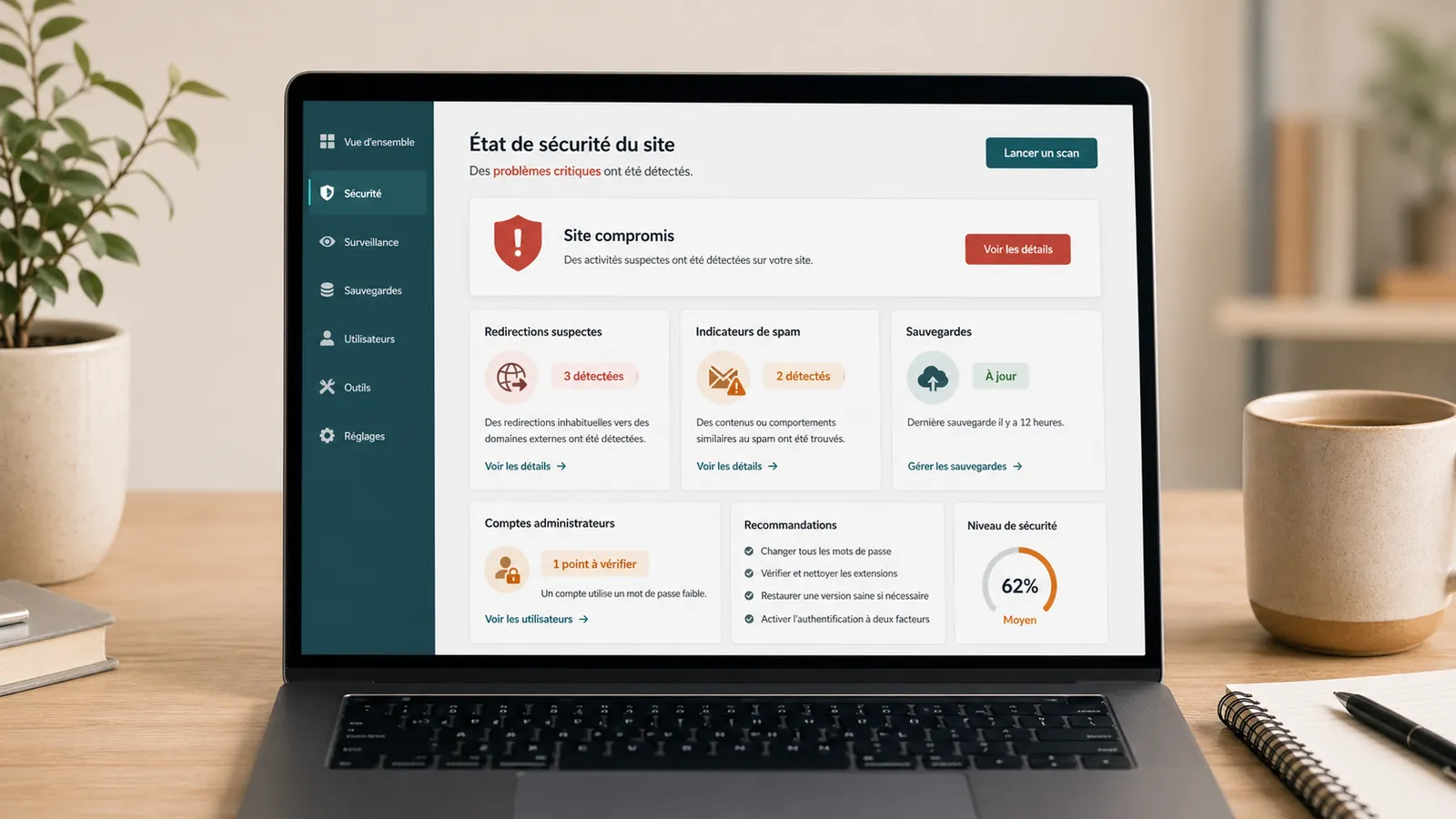
You search for your website in Google and see a worrying message: the website may be hacked, may harm your computer, contains deceptive content or is dangerous. The warning may appear in Google results, Chrome, Search Console or an email to the website owner.
On WordPress, this type of alert does not always mean that the homepage is broken. The site can continue to display normally, while Google has found spam URLs, redirects, injected code, suspicious files or unknown pages under your domain name.
The right reflex is not to click everywhere to make the alert disappear. You first need to understand what Google has detected, preserve useful clues, clean up the site and then ask for a review when the problem is actually fixed.
Quick response
Signal
Google or Chrome Alert
The problem may come from a specific page, set of spam URLs, redirection or infected file.
Priority
Clean before review
Asking for validation too early is not useful if the site still generates suspicious content.
To be kept
Messages + URL + screenshots
The examples provided by Google help find the origin instead of blind cleaning.
First identify the type of alert
Not all Google alerts are treated exactly the same way. A reference in the search results may indicate hacked content. A red screen in the browser may come from Google Safe Browsing. A message in Search Console may indicate a more specific category: malware, hacked pages, phishing, misleading content or dangerous downloads.
The first step is therefore to check where the alert appears. Search the site in Google, open Search Console, view recent messages, look at the report Security issues and note the examples of URLs indicated. If you only have a screenshots sent by a client, ask for the exact URL and browser used.
What the alarm doesn't say
The alert does not always give the origin of the hacking. It does not necessarily say which plugin is involved, which account has been compromised or which file needs to be replaced. It says above all that Google saw something risky on the site or under the domain.
The problem can be seen only for Google, only from a mobile, only from search results or only from URLs that do not appear in the menu. It is for this reason that a site that seems normal to the naked eye can still be reported.
Checks to do in Search Console
Search Console often gives the best clues, provided that it is not limited to a single report. Check the following areas before changing the site.
What you shouldn't do too fast
Do not request Google's review before cleaning the website. It is tempting to click the review button immediately, but Google checks whether the problem remains. If spam pages, redirects or infected files are still present, the request may fail.
Also avoid deleting only visible URLs, changing the theme without diagnostic review, installing multiple security plugins at random or restoring a backup without knowing if it is healthy. A Google alert is a symptom. We have to deal with what triggered it.
A method for regaining control
Clean treatment is done in a specific order. The goal is to correct without losing the evidence, without breaking the site and without asking Google to reconsider a still unstable version.
- Make screenshots of alert, Search Console messages and example URLs.
- Keep a backup of the current status, even if the site is infected.
- Check WordPress, theme, plugins, uploads, server files and redirection rules.
- Control database, admin accounts, planned tasks and unknown contents.
- Clean or replace suspicious files with clean sources.
- Remove spam pages, parasitic sitemaps, hidden redirections and unlegitimate accounts.
- Change WordPress access, hosting, SFTP, database and related accounts.
- Test the site from a clean browser, Search Console and some suspicious URLs before the review.
To be sent for a diagnostic review
In order to understand the alert quickly, it takes above all the elements that show what Google has actually seen. Access is then provided, if technical intervention is required.
Request Google review at the right time
After cleaning and checking the website, request a review through Search Console's Security Issues report. Google says a security review can take a few days to several weeks depending on the case. Hacked spam warnings may take longer, especially when many URLs were created.
The request must explain what has been fixed: deleted or replaced files, deleted accounts, updated plugin, changed passwords, cleaned redirects, processed spam URLs and measures taken to prevent recurrence. A vague request, sent before the end of the cleaning, has little interest.
What if Search Console doesn't show anything?
Sometimes Search Console does not show the expected alert. You may be checking the wrong property, the warning may originate in the browser, the notification may concern an older version already partly restored, or the problem may affect the whole domain while you are checking only a URL-prefix property.
In this case, check the variants of the domain: with and without www, HTTP and HTTPS, possible subdomains and domain ownership. Also check messages received by former owners or service provider if you have just retrieved the site.
When to ask for an intervention
Ask for help if the alert is visible in Google, if Search Console mentions malware or hacking, if unknown URLs appear, if the site redirects some visitors or if you do not have the necessary access to check the files and database.
If the alert is linked to pages in foreign language, the article on Japanese pages in Google details this scenario. If some visitors are sent to another domain, also read the guide on WordPress site that redirects to another site.
The budget is discussed after the first technical reading. An isolated alert, a large volume of spam pages, an active WooCommerce or a compromised server do not require the same work. To understand the criteria of the quote, the article on the cleaning a hacked WordPress site remains the right complement.
Frequently asked questions
Why does Google show that my website may be hacked?+
Google can display an alert if it detects spam pages, injected content, suspicious redirections, malware, phishing or security signals associated with your domain. However, the site may seem normal from the homepage.
Should we ask for a Google review right away?+
No. First, you need to understand the origin of the alert, clean up the site, secure access, and check that suspicious pages do not return. A review sent too soon can be refused and waste time.
Is Search Console enough to remove the alert?+
Search Console shows detected issues, provides messages and lets you request a review. It does not clean WordPress. Cleanup needs to address files, the database, accounts, plugins, the theme, server and redirects.
How long does it take for the alert to disappear?+
After cleaning and requesting a review, the delay can range from a few days to several weeks depending on the type of alert, the volume of URL affected and the processing by Google.
Read next.

WordPress website sending spam: what to check on the server
Has your host reported spam sent from your WordPress website or server? What to check before re-enabling email.
Read the articleMalware files reported: what should you do on WordPress?
Has your hosting provider detected malicious WordPress files? What to check, what to avoid and how to prepare cleanup without making the incident worse.
Read the articleHacked WordPress site with Japanese pages: what should you do in Google?
Japanese pages in Google while your WordPress website looks normal? What to check, what to avoid and how to prepare cleanup while preserving useful evidence.
Read the article